How to Look Confident on Camera: A Practical Guide for Creators
If you shoot solo video with an iPhone on a tripod, you’ve hit the scroll control problem: the phone is four feet away, you can’t reach the screen mid-take, and the only fix that doesn’t break your flow is one you wear on your wrist. Here’s how the Apple Watch remote works in Prompt Me and why it’s the right tool for solo creators.
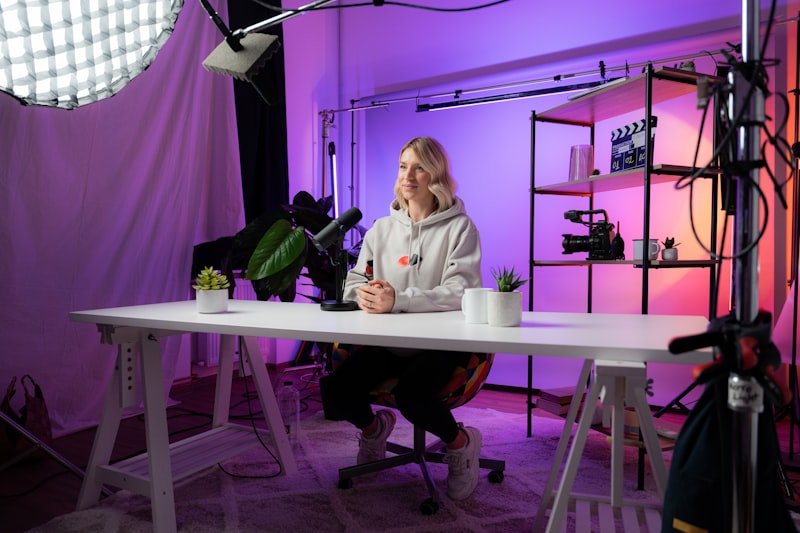
When your phone is on a tripod, you’re not standing next to it. The typical solo creator setup puts the phone 3–8 feet away at eye level. That’s too far to comfortably tap a scroll control mid-take without walking into frame.
The workarounds most people land on:
A connected Apple Watch removes both constraints without adding hardware you need to source separately.
Prompt Me includes a native Apple Watch app. When both devices are on the same Apple ID and within Bluetooth range, the Watch connects automatically.
From your wrist you can:
The digital crown is what makes this genuinely different. You are the scroll. Turn the crown and the text moves; stop turning and it holds — instantly, at that exact word. There’s no speed setting to dial in, no timer to race. Slow down through a complex point, hold on a line for emphasis, or take a breath — the text waits exactly where you left it. You’re in complete control of the pace.
Turn slowly and deliberately. Fast crown movements jump the text; even turns produce a smooth scroll that matches natural speaking speed.
Practice the speed before committing to a take. Run through the first 30 seconds of your script with the Watch controlling scroll and find the crown rotation that matches your pace. Use that as your baseline.
Let the crown set the rhythm. Natural beats, moments where you want to slow down and let something land, points where you want to elaborate — just stop or slow the crown. Unlike auto-scroll, which keeps moving whether you’re ready or not, the Watch remote means your delivery controls the pace, not the other way around.
Keep the Watch face-up on your wrist as normal. You want to glance down briefly rather than raise your arm — lifting your arm shows in the shot. A quick downward glance reads as natural on camera.
Solo creators doing talking-head, tutorial, or explainer content at any length. If your script runs longer than 2 minutes, fixed-speed auto-scroll trade-offs start showing up in your delivery. The Watch remote removes them.
It’s also useful for step-by-step formats where you want to elaborate on a point before moving to the next line. Stop the crown, speak freely, continue when you’re ready — without cutting and restarting. That alone saves significant editing time.
The Apple Watch remote isn’t a feature most teleprompter apps include. Prompt Me built it specifically for the solo iPhone-on-tripod workflow that most creators are actually using.